

Quick start: Blueprints and Playbooks
This guide connects a CRM to Oneflow. You will create an Integration Blueprint through the Public API, then set up its Playbook mappings in Oneflow Admin. An optional ERP example shows how a second integration can use the same contract data.
Prerequisites
You need:
- A Oneflow development or test account.
- Permission to manage integrations and Playbooks in Oneflow Admin.
- An API token for the intended Integration context. For a partner integration, see partner setup.
- The email address of an active Oneflow user for operations that require
x-oneflow-user-email. - A list of stable integration field identifiers.
- A Template for testing.
- A webhook endpoint if the workflow reacts to contract events.
API availability and Admin responsibilities
| Task | Public API | Oneflow Admin |
|---|---|---|
| Verify token context | Yes | Not required |
| List and manage Blueprints | Yes | Custom Integration also supports this |
| Manage Blueprint fields | Yes | Custom Integration also supports this |
| List Playbooks | Yes | Yes |
| Create or update a Playbook | No public endpoint | Yes |
| Connect a Blueprint to a Playbook | No public endpoint | Yes |
| Create or update field mappings | No public endpoint | Yes |
| Find Templates by Playbook or Blueprint | Yes | No |
| Create a Contract from a Template | Yes | Yes |
| Register a Blueprint-filtered webhook | Yes | Custom Integration supports creating a webhook, but not filters yet |
Example scenario
A CRM creates a Contract and supplies the deal amount as its value. After signing, the same CRM integration reads the current Contract value and updates the deal.
Optionally, an ERP integration can read the same value and use it as the invoice amount.
| Object | Field | Integration-facing identifier (Custom ID) |
|---|---|---|
| CRM Blueprint | Deal amount | crm_deal_amount |
| Playbook | Contract value | No integration Custom ID |
| ERP Blueprint (optional) | Invoice amount | erp_invoice_amount |
Steps to follow
Use this example to set up and test a new workflow. If you are updating an integration that uses Template Groups, follow the Migration guide.
Step 1: Verify the token context
curl --request GET \
  --url "https://api.oneflow.com/v1/accounts/me" \
  --header "x-oneflow-api-token: YOUR_TOKEN"
Check token_info.integration.key to confirm that the token belongs to the intended integration. Save token_info.integration.id. Use it as integration_id in step 2.
Step 2: Create the Blueprint
Create the Blueprint that defines the CRM fields. Replace 230001 with the Integration ID from step 1. The IDs in later examples are sample values too; replace them with IDs from your account.
curl --request POST \
  --url "https://api.oneflow.com/v1/integration_blueprints" \
  --header "x-oneflow-api-token: YOUR_TOKEN" \
  --header "Content-Type: application/json" \
  --data '{
    "enabled": true,
    "integration_id": 230001,
    "name": "CRM deal",
    "description": "Fields used for contracts created from a CRM deal",
    "integration_blueprint_fields": [
      {
        "name": "Deal ID",
        "description": "ID of the originating CRM deal",
        "custom_id": "crm_deal_id",
        "mapping_required": true
      },
      {
        "name": "Deal amount",
        "description": "Current deal value",
        "custom_id": "crm_deal_amount",
        "mapping_required": false
      }
    ]
  }'
Save the returned Blueprint id. Later examples use 860000 for the CRM Blueprint and 860001 for the optional ERP Blueprint. Replace these sample IDs with your own.
The current API constraints include:
- Blueprint
name: 1 to 100 characters. - Blueprint
description: 1 to 100 characters when supplied. - Field
name: 1 to 100 characters. - Field
description: 1 to 1024 characters when supplied. - Field
custom_id: 1 to 100 characters and unique within the Blueprint. - Field
mapping_required: Boolean. Set it explicitly.
The Public API exposes the data_type property for Blueprint fields. We can include it in create or update requests, but it currently supports only the string type.
Admin alternative for Custom Integration
- Enable Custom Integration from Marketplace.
- Go to Admin > Integrations > Custom Integration.
- Open Integration blueprints.
- Select + Create integration blueprint.
- Add the Blueprint fields.
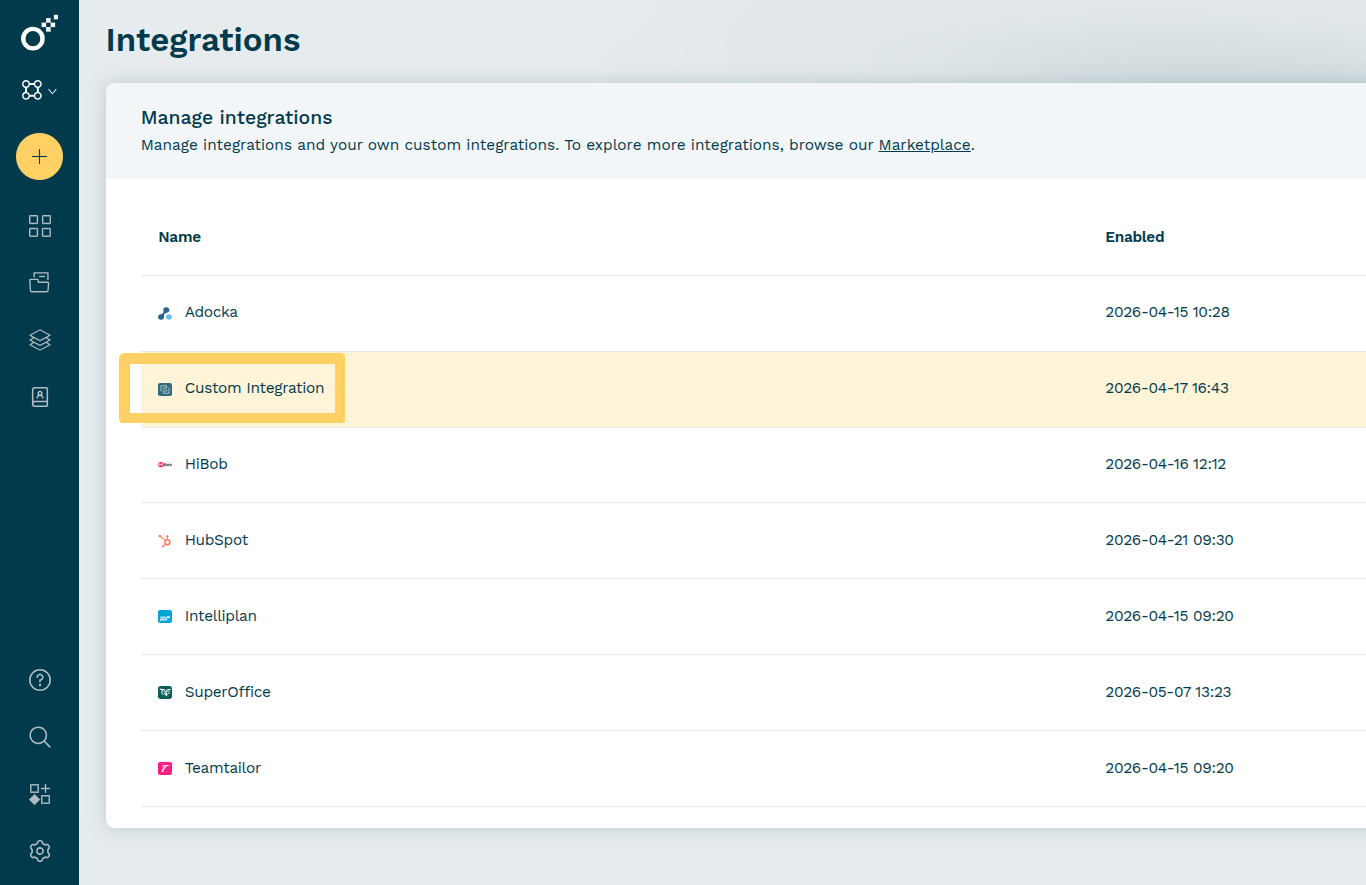
See Integrations for current administrator instructions.
Step 3: Read or update the Blueprint
List enabled Blueprints:
curl --request GET \
  --url "https://api.oneflow.com/v1/integration_blueprints?filter%5Benabled%5D=true" \
  --header "x-oneflow-api-token: YOUR_TOKEN"
Update Blueprint metadata with:
PUT /v1/integration_blueprints/{integration_blueprint_id}
Do not use PATCH.
Manage fields with:
GET    /v1/integration_blueprints/{id}/integration_blueprint_fields
POST   /v1/integration_blueprints/{id}/integration_blueprint_fields
PUT    /v1/integration_blueprints/{id}/integration_blueprint_fields
PUT    /v1/integration_blueprints/{id}/integration_blueprint_fields/{field_id}
DELETE /v1/integration_blueprints/{id}/integration_blueprint_fields/{field_id}
The bulk PUT operation can create, update, and remove fields in one request:
curl --request PUT \
  --url "https://api.oneflow.com/v1/integration_blueprints/{integration_blueprint_id}/integration_blueprint_fields" \
  --header "x-oneflow-api-token: YOUR_TOKEN" \
  --header "Content-Type: application/json" \
  --data '{
    "integration_blueprint_fields": [
      {
        "id": 450140,
        "name": "Deal amount",
        "custom_id": "crm_deal_amount",
        "mapping_required": false
      },
      {
        "name": "Currency",
        "custom_id": "crm_currency",
        "mapping_required": false
      },
      {
        "id": 450141,
        "remove": true
      }
    ]
  }'
Step 4: Create and configure the Playbook
In Oneflow Admin:
- Go to Admin > Playbooks.
- Create a Playbook or open an existing one.
- Open Connected integrations.
- Select + Connect an integration blueprint.
- Connect the CRM Blueprint.
- Choose how existing and future Blueprint fields should be added.
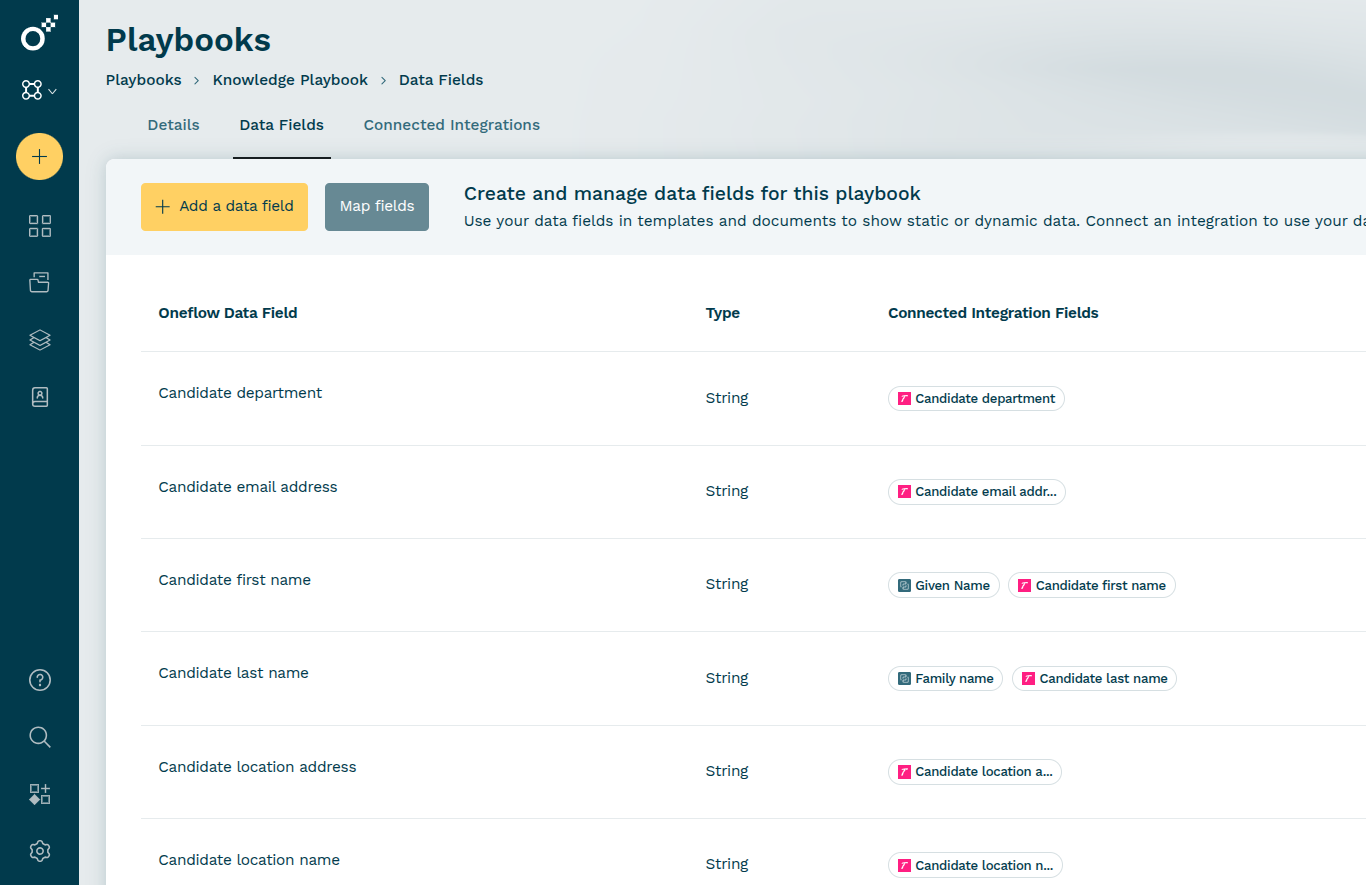
- Open Data fields and map the CRM fields. Map
crm_deal_amountto Contract value. - Optional: Connect an ERP Blueprint that contains
erp_invoice_amount. If it does not exist, use step 2 as a guide. Use the ERP integration’s token and Integration ID. Replace the CRM fields with an Invoice amount field whose Custom ID iserp_invoice_amount. - Optional: Map
erp_invoice_amountto the same Contract value field ascrm_deal_amount.
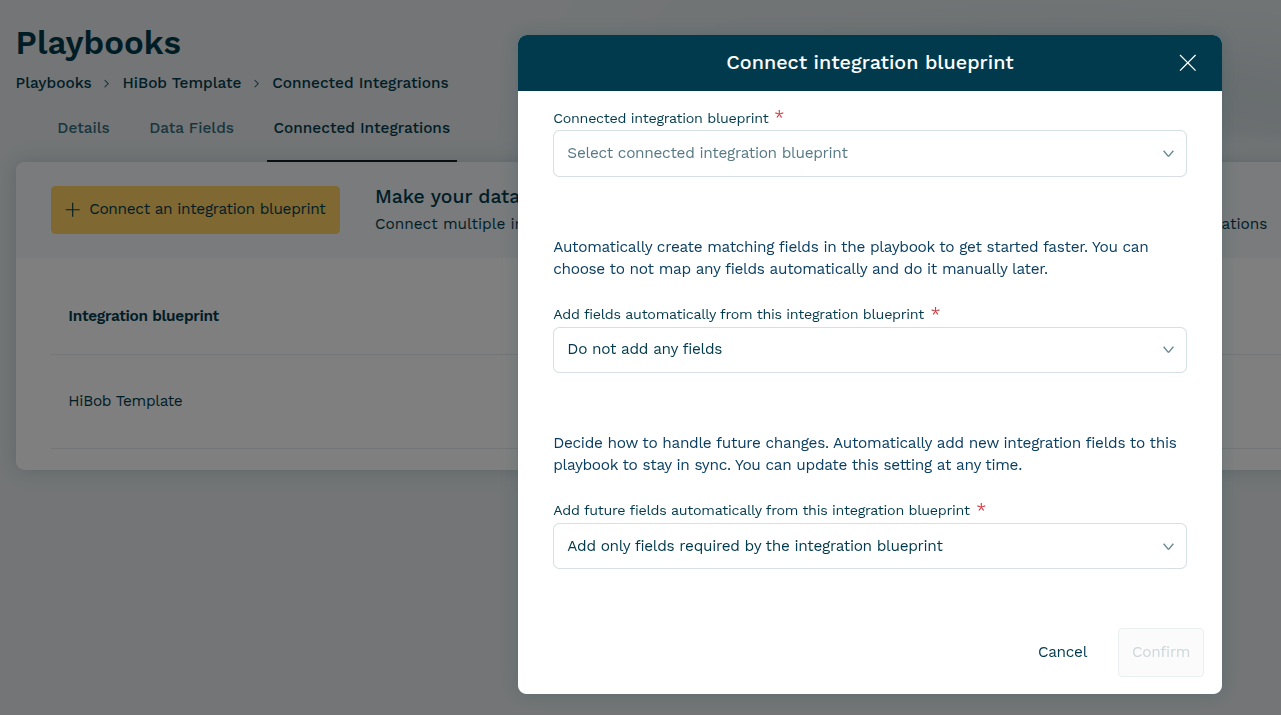
For existing and future fields, the connection offers:
- Add only fields required by the blueprint
- Add all fields from the blueprint
- Do not add any fields
When you connect a second Blueprint, reuse an existing Playbook Oneflow data field for the same business value instead of creating a duplicate.
Review the mappings in Data fields:
The Public API can list the resulting Playbook:
curl --request GET \
  --url "https://api.oneflow.com/v1/playbooks?filter%5Bintegration_blueprint_id%5D=860000" \
  --header "x-oneflow-api-token: YOUR_TOKEN"
The response includes Playbook metadata and connected Blueprints. It does not include the Playbook's field mappings.
Step 5: Select the Playbook on a Template
- Open the target Template.
- Open Data Fields.
- Select the Playbook under Playbook fields.
- Use the Playbook fields in the document content, forms, and rules.
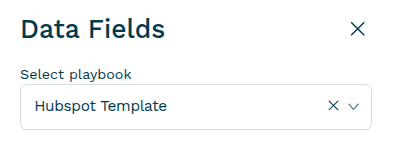
Verify the Template through the API:
GET /v1/templates?filter[playbook_ids]=870000
GET /v1/templates?filter[blueprint_ids]=860000
GET /v1/templates/{template_id}
The Template response identifies the selected Playbook and its connected Blueprints.
The Template's Playbook snapshot stays synchronized. A Contract created from the Template receives a creation-time snapshot of that context.
Step 6: Create a Contract
A Contract created from a Template inherits that Template's Playbook. Do not send a Playbook ID to POST /v1/contracts/create separately.
curl --request POST \
  --url "https://api.oneflow.com/v1/contracts/create" \
  --header "x-oneflow-api-token: YOUR_TOKEN" \
  --header "x-oneflow-user-email: [email protected]" \
  --header "Content-Type: application/json" \
  --data '{
    "workspace_id": 130001,
    "template_id": 170001,
    "name": "CRM deal 12345",
    "data_fields": [
      {
        "custom_id": "crm_deal_id",
        "value": "12345"
      },
      {
        "custom_id": "crm_deal_amount",
        "value": "10000"
      }
    ]
  }'
Use the source integration's Blueprint Custom ID values. The complete Contract creation request can require party or participant data for your workflow. See Create a contract.
Step 7: Verify the Contract and field visibility
Read the Contract with the CRM integration’s token:
GET /v1/contracts/{contract_id}
GET /v1/contracts/{contract_id}/data_fields
Confirm:
- The Contract was created from the intended Template.
- The Contract carries the intended Playbook and Blueprint context.
- The CRM integration sees
crm_deal_amount. - Playbook-only and unrelated integration fields are not exposed.
If you connected an ERP Blueprint, repeat the requests with the ERP integration’s token. Confirm that it sees the same value through erp_invoice_amount.
Use the exact discovery filters when listing Contracts:
GET /v1/contracts?filter[playbook_ids]=870000
GET /v1/contracts?filter[blueprint_ids]=860000
Token context alone does not guarantee that a Contract list is scoped to one Blueprint.
Step 8: Register a Blueprint-aware webhook
Use the CRM integration’s token to register its webhook. Replace 860000 with the CRM Blueprint ID. Use your callback URL and signing key. Keep the event and Blueprint rules in the same filter object:
curl --request POST \
  --url "https://api.oneflow.com/v1/webhooks" \
  --header "x-oneflow-api-token: YOUR_TOKEN" \
  --header "Content-Type: application/json" \
  --data '{
    "callback_url": "https://example.org/oneflow/events",
    "sign_key": "replace-with-a-secret",
    "filters": [
      {
        "filter_rules": [
          {
            "type": "EVENT_TYPE",
            "values": ["contract:sign"]
          },
          {
            "type": "BLUEPRINT",
            "values": [860000]
          }
        ]
      }
    ]
  }'
If you added an ERP integration, register its webhook separately. Use its token, Blueprint ID (860001 in this example), callback URL, and signing key.
Event values are strings. Workspace and Blueprint values are integer IDs. Rules in the same filter_rules array must all match.
Oneflow sends the documented delivery body with contract.id, callback_id, events, and signature. Verify sha1(callback_id + sign_key), handle duplicate callbacks safely, and return HTTP 200 after successful handling. Oneflow ignores the response body and retries non-200 responses.
See Webhooks and integration responsibilities.
Step 9: Test end to end
- Create a test Contract from the configured Template.
- Confirm the expected Playbook and Blueprint context.
- Confirm the CRM’s field identifiers.
- Change Contract value in Oneflow.
- Trigger the configured event.
- Confirm that the CRM retrieves the current value through
crm_deal_amount. - Confirm that the CRM updates the correct deal and handles duplicate notifications without duplicate actions.
- Retrieve the signed document if the workflow requires it.
If you added an ERP integration, also confirm that it reads the current value through erp_invoice_amount and uses it for the correct invoice.
Troubleshooting
The Blueprint is read-only
It may be synchronized from a legacy Template Group or maintained by an Integration that your caller does not own. Follow the applicable Integration or migration workflow.
A required-field warning appears
At least one Blueprint field with mapping_required: true is not mapped to a Playbook field.
The Playbook exists but the API does not show its mappings
GET /v1/playbooks returns metadata and connected Blueprints, not Playbook data-field mappings. Review the mappings in Oneflow Admin.
The integration sees an empty or incomplete field list
Check that:
- The Template selects the intended Playbook.
- The Playbook connects the intended Blueprint.
- The fields are mapped.
- The request uses the intended Integration token.
The integration can list unrelated Contracts
Use filter[blueprint_ids] or filter[playbook_ids] to retrieve contracts associated with a particular integration or playbook.
A generic automation integration cannot see the fields
Review the Advanced settings on the relevant Playbook's Connected blueprint. Enable it only when the generic integration should use that Blueprint's mappings.
Limits
See Current limits.
Updated 3 days ago