

Product tax
In this tutorial, you learn how to set product tax for products and product groups in a contract.
Before you begin
- You should have a contract that includes a product table.
- If you use the Public API, you have an API token. See Authentication and authorization.
- If you need to change how many decimals are used for prices, see Decimal prices and quantities.
From the Oneflow application
Use the Oneflow application to set a tax rate per product and control how the tax label appears in the product table.
Set product tax in the product table
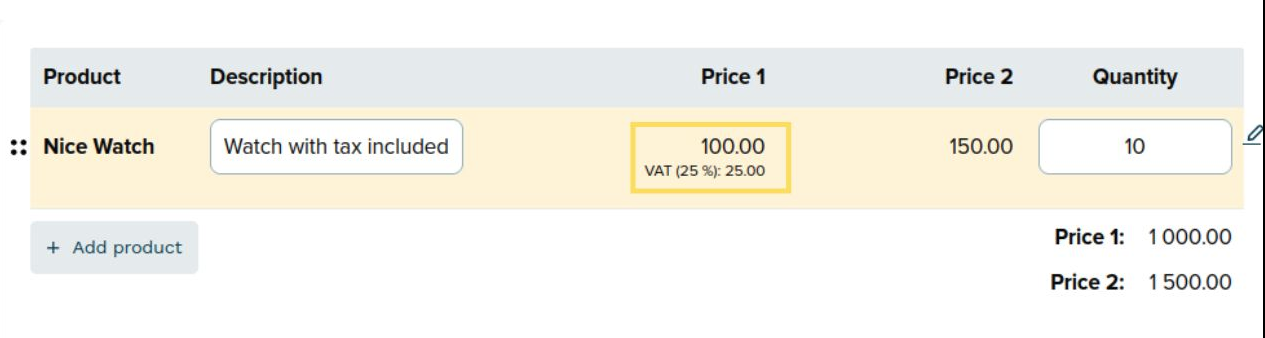
- In the product table, click the product price to open the edit dialog.
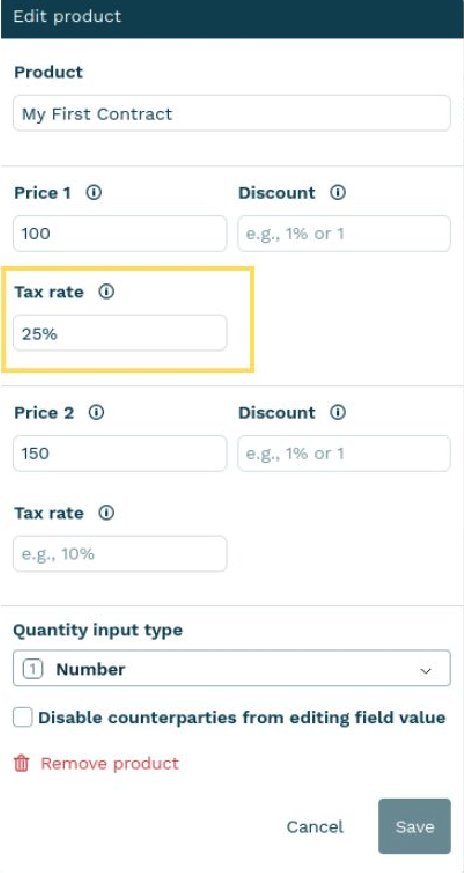
- In Tax rate, enter the tax rate.
- Click Save.
Note:Tax rate is a percentage. Supported values are 0 to 100.
Set the tax label
Use this setting to control the label shown for tax in the product table (for example, VAT).
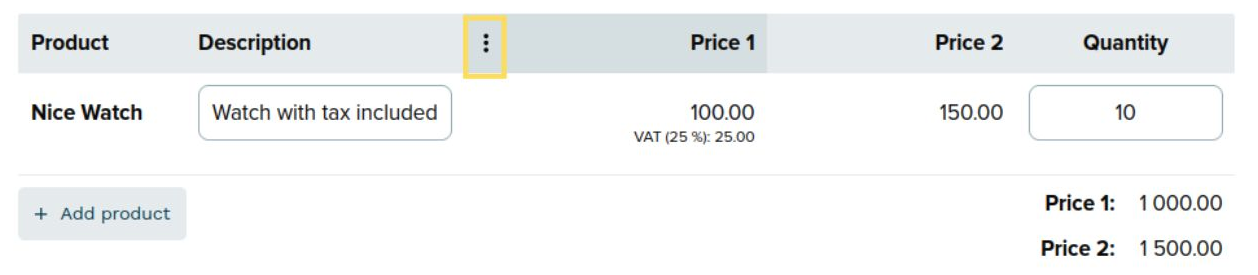
- In the product table, click the menu button in the Price 1 column.
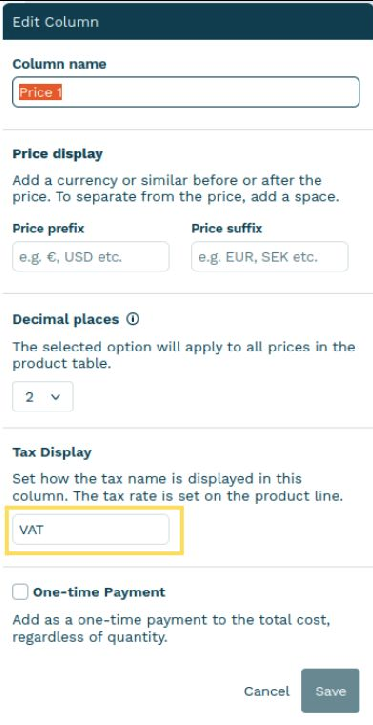
- In Tax display, enter the label you want to show (for example, VAT).
- Click Save.
From the Public API
The following endpoints support product tax:
- Create a contract (set configuration and products when you create the contract)
- Update a product by ID (update tax on a single product)
- Update a list of product groups (bulk update product group configuration and products)
- Update a product group by ID (update configuration for one product group configuration and products)
- Add a product to a product group (set tax when you add a product)
- Update a product in a product group (update tax for a product inside a product group)
Step 1: Set the tax label
Set the label for the tax column by including tax_1.label inside the configuration object.
Example:
{
  "configuration": {
    "tax_1": {
      "label": "VAT"
    }
  }
}
Note:If you include
tax_1in the configuration, setlabelexplicitly. If you omittax_1.label, Oneflow usesTaxas the default label.
Step 2: Set the tax rate for products
Set the tax rate per product price line by setting price_1.tax_1 and price_2.tax_1.
Example:
{
  "products": [
    {
      "id": 470229,
      "name": "shoes",
      "price_1": {
        "base_amount": {
          "amount": "100.00"
        },
        "tax_1": {
          "key": "percentage",
          "value": "25.125"
        }
      },
      "price_2": {
        "base_amount": {
          "amount": "150.00"
        },
        "tax_1": null
      }
    }
  ]
}
Note:
- You can set
tax_1on bothprice_1andprice_2.tax_1is nullable. Use"tax_1": nullto remove tax from that price line.- If
tax_1is not null,keyandvalueare required. They cannot be null or empty.valuesupports up to three decimal places.
Note:Decimal precision rules:
- The Public API does not validate the number of decimal places in the input tax amount against the defined
price_precision. It allows tax amounts with decimal places either fewer or more (up to a maximum of 3) than the definedprice_precision.- Example: If
price_precisionis 2, you can provide values such as 1, 1.2, or 1.234 as the tax amount.- If you set a tax amount with fewer decimal places than defined in
price_precision, the Public API appends trailing zeros when returning values.- Example: If
price_precisionis 3 and you input 1.2 as the tax amount, the Public API returns 1.200 in the response.
Note:The
price_1.tax_1andprice_2.tax_1percentage value does not depend on the definedprice_precision. It supports up to 3 decimal places in the request body. The Public API returns the tax percent in 3 decimal places, adding trailing zeros if the tax percent has fewer than three decimal places or is an integer.
Note:When Oneflow calculates the total price and tax amounts, it follows the number of decimal places defined by the
price_precisionof the related product group.
Updated 8 months ago