

Migration guide
Use this guide to move a legacy integration from Template Group operations to Blueprint operations. The customer’s Playbook fields and mappings stay in place.
ImportantMigrating from a synchronized legacy Blueprint to an independently managed Blueprint is a one-way change for that Integration instance in that Oneflow account. Test the supported process in a non-production account before changing production schema management.
Do you need to migrate now?
You do not need to migrate immediately if your integration works and does not need features available only to independently managed Blueprints.
Plan a migration when you want to:
- Define optional as well as required integration fields with
mapping_required. - Maintain the integration schema through Blueprint endpoints.
- Adopt functionality available only to independently managed Blueprints.
- Remove dependencies on Template Group schema operations.
The conceptual change
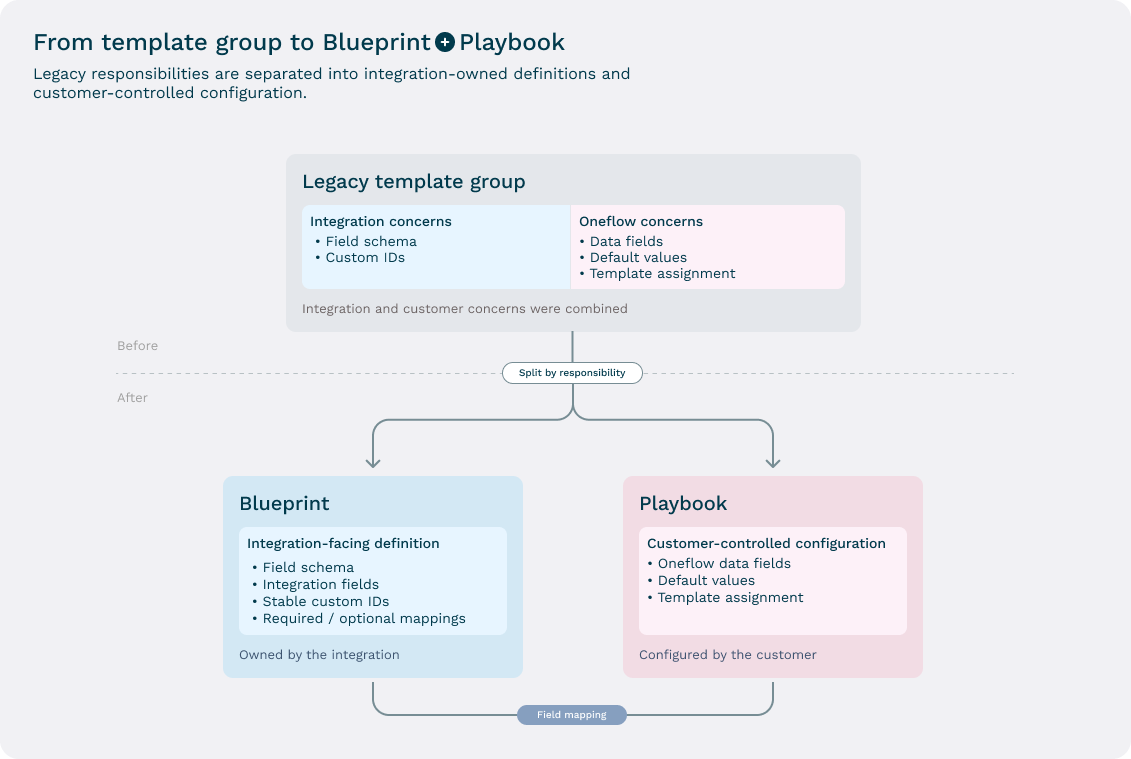
A Template Group is not simply renamed. Its responsibilities are split.
| Legacy Template Group responsibility | Current object |
|---|---|
| Integration-specific field identifiers | Integration Blueprint fields |
| Integration field requirements | Integration Blueprint |
| User-facing Oneflow fields | Playbook data fields |
| Default values and user-facing labels | Playbook data fields and Template configuration |
| Mapping fields between systems | Playbook field mappings |
| Assignment to a Template | Playbook selected by the Template |
Backward compatibility
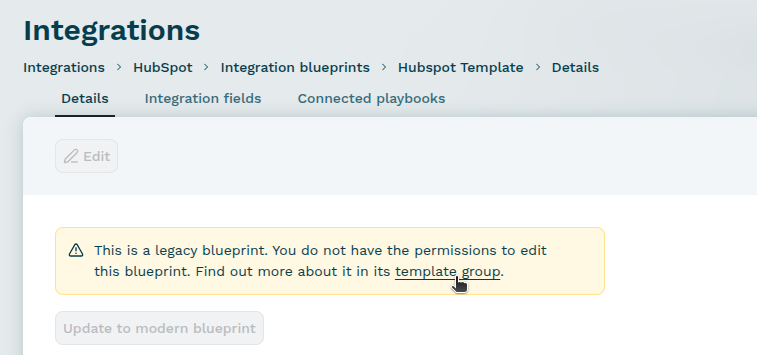
For an existing Template Group, Oneflow creates a corresponding legacy Blueprint and a Playbook. Oneflow keeps their field definitions and mappings synchronized so existing integrations can continue to use Template Group endpoints.
While synchronization is active:
- Maintain the integration schema through the Template Group endpoints.
- Treat the synchronized legacy Blueprint as read-only.
- Expect fields originating from the Template Group to be treated as required because the legacy model did not represent optional mappings.
- Continue testing the existing integration. The appearance of legacy objects in the current UI does not itself require an immediate code change.
Note:In the Oneflow application, you can no longer see the Template Group pages. However, all Template Groups and their data fields now reside within the associated legacy Integration Blueprint pages.
What happens after the one-way migration
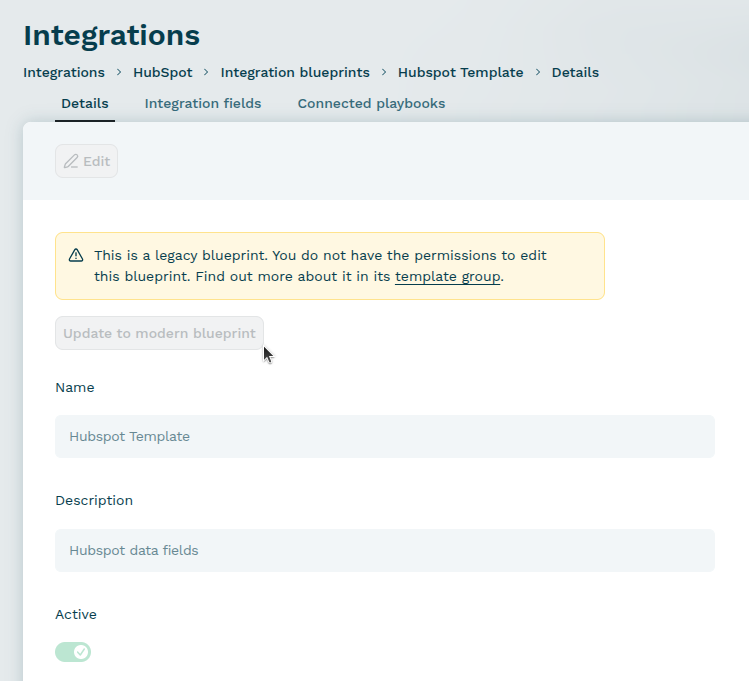
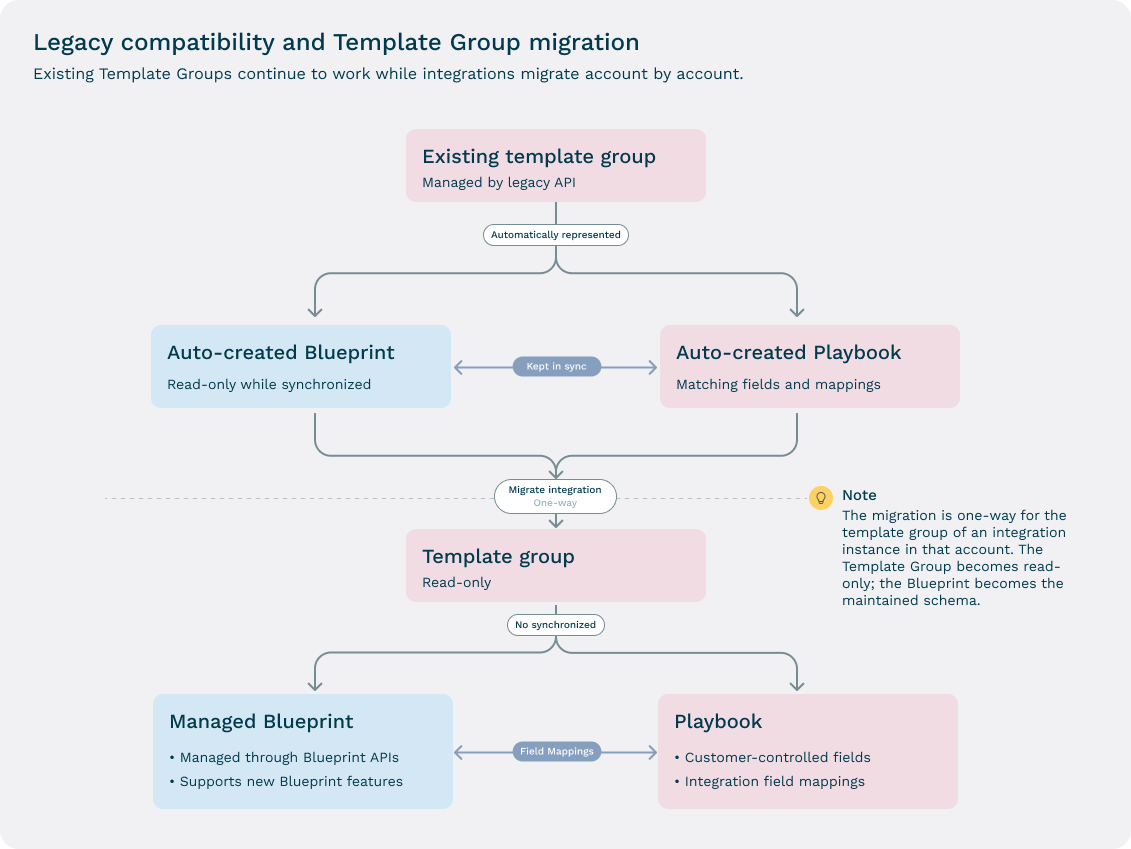
This one-way change stops synchronization between the Template Group and its Blueprint. The Template Group becomes read-only, and you manage the Blueprint separately. Your integration code is not updated automatically. The existing Playbook, fields, and mappings stay in place.
In Oneflow Admin, select Update to modern blueprint.
After the migration:
- Legacy Template Group-to-Blueprint synchronization stops for that Integration instance and account.
- The Template Group becomes read-only for that integration instance.
- Future integration field changes use Blueprint operations.
- The Playbook remains the customer-controlled shared field and mapping layer.
Public API changes
| Purpose | Legacy API | Current API or behavior |
|---|---|---|
| Create the integration field definition | POST /v1/template_types | POST /v1/integration_blueprints |
| Replace the integration fields | PUT /v1/template_types/{template_type_id}/data_fields | PUT /v1/integration_blueprints/{integration_blueprint_id}/integration_blueprint_fields |
| Update Blueprint metadata | Not separate in the same model | PUT /v1/integration_blueprints/{integration_blueprint_id} |
| List Playbooks | Not applicable | GET /v1/playbooks |
| Find Templates | template_type_id and legacy integration filters on GET /v1/templates | filter[playbook_ids] and filter[blueprint_ids] on GET /v1/templates |
| Find Contracts | Legacy discovery assumptions | filter[playbook_ids] and filter[blueprint_ids] on GET /v1/contracts |
| Webhook filter registrations | Legacy compatibility properties and filters | BLUEPRINT rules in the webhook filters array |
| Migrate schema ownership | Template Group remains the source while synchronized | Use Update to modern blueprint in Oneflow Admin, then maintain the Blueprint. |
Migration plan
1. Record customer accounts
For each account:
- Template Group IDs and names.
- Data Field names and
custom_idvalues. - Templates using each Template Group.
- Webhooks, filters, and dependencies on
template_group_id. - Code that assumes one global Template Group or Blueprint ID.
- Code that assumes every Contract field is visible to the integration.
Blueprints and Playbooks are account-scoped. Plan and track the migration separately for every customer account.
2. Review the synchronized Blueprint and Playbook
In Oneflow Admin:
- Open Integrations, select the integration, and then choose Integration Blueprints.
- Review the generated legacy Blueprint. You can see the link to the legacy Template Group within the same page.
- Open Connected playbooks and review the synchronized Playbook.
- Confirm that the fields and mappings match the Template Group with the Playbook and the Blueprint.
- Record these account-specific object IDs. A generated legacy Blueprint and Playbook do not mean that the one-way migration is complete.
3. Decide whether to reuse the Playbook
Keep using the synchronized Playbook if its fields and Template setup already fit the workflow. You can connect another integration's Blueprint to that Playbook and map its fields there.
For a new workflow, create and manage its Integration Blueprint from your integration. Reuse an existing Blueprint if it already defines the fields you need. Create or select a Playbook for the shared fields and mappings.
When connecting another Blueprint to a Playbook:
- Reuse existing Playbook fields for the same business value.
- Add required fields first.
- Avoid automatically creating duplicate Playbook fields from every Blueprint.
4. Prepare the integration code
Before performing the one-way migration:
- Verify token context with
GET /v1/accounts/me. - Replace legacy Template Group operations with Blueprint and Blueprint-field operations. Refer to Public API changes.
- Use the exact Template and Contract filter names.
- Handle integration-specific
custom_idvalues. - Do not assume Playbook-only fields appear in the responses.
- For existing webhooks that must follow a Blueprint, use Update a webhook by ID. Replace the old
template_group_idrestriction with aBLUEPRINTfilter. - For new webhooks, include the
BLUEPRINTfilter when you register them. - Keep the event and workspace rules you still need. Put rules that must all match in the same
filter_rulesarray. - Store account-specific Blueprint and Playbook IDs.
Test the new code against a non-legacy Blueprint or an account where the supported migration has already been completed.
5. Test the complete workflow
Verify:
- All required Blueprint fields are mapped.
- The target Template selects the intended Playbook.
- Template and Contract discovery works with
filter[playbook_ids]andfilter[blueprint_ids]. - Contract creation accepts the source integration's
custom_idvalues. - Each Integration context sees the expected field identifiers and values.
- Webhooks with Blueprint filters select the intended contracts for webhook events.
- The destination action uses the current Contract values.
- Record matching and idempotency work.
6. Perform the supported one-way migration
In Oneflow Admin, select Update to modern blueprint. This stops synchronization between the Template Group and its Blueprint for this Integration instance and account. It does not update your integration code.
Afterward:
- Confirm that legacy Template Group synchronization has stopped.
- Confirm that the Template Group is read-only.
- Confirm that the Blueprint can be maintained through the Public API.
- Confirm that existing Playbook mappings still work.
- Save the resulting Blueprint ID and the Playbook ID in the customer configuration.
7. Roll out account by account
Start with one pilot account. Then, monitor:
- Contract creation failures.
- Missing required mappings.
- Unexpected or missing
custom_idvalues. - Empty or incomplete field lists.
- Webhook events.
- Destination record matching.
Roll out additional accounts in controlled batches.
Migration checklist
Preparation
- Inventory Template Groups, fields, Templates, and webhooks.
- Remove assumptions based on one global object ID.
- Define required and optional Blueprint fields.
- Identify Playbook-only fields.
- Confirm the supported migration procedure with Oneflow.
Configuration
- Review the synchronized legacy Blueprint and Playbook.
- Create or select the target Playbook.
- Connect the required Blueprints to the target Playbook.
- Map every required Blueprint field.
- Select the Playbook on the target Template.
Code
- Verify token context with
GET /v1/accounts/me. - Replace legacy Template group operations with Blueprint
PUToperations. - Use
filter[blueprint_ids]andfilter[playbook_ids]in GET templates and contracts. - Handle Integration-specific
custom_idvalues. - Register Blueprint-aware webhook filters.
Test and production
- Create a test Contract.
- Confirm the expected Playbook and Blueprint context in the Contract response that was created.
- Confirm field visibility for every participating Integration.
- Change a value in Oneflow Contract and test downstream processing.
- Verify idempotency and signed-document retrieval.
- Migrate one pilot account and monitor it.
- Roll out the remaining accounts in controlled batches.
Frequently asked questions
Does an existing Template Group integration need an immediate code change?
No. The synchronized legacy Blueprint and Playbook preserve the existing behavior while the integration continues to use the legacy endpoints.
Can I use a Playbook with just one connected Blueprint?
Yes. A Playbook can have no connected Blueprints, one, or several. It can connect only one Blueprint from each Integration instance.
Can I connect two Blueprints from the same Integration to one Playbook?
No. Use separate Playbooks for distinct Blueprints from the same Integration instance.
Can I configure a Playbook entirely through the Public API?
No. The Public API can currently only list Playbooks. Create, update, connect, and field-mapping operations must be done in Oneflow Admin.
How do I perform the one-way migration?
Use Update to modern blueprint in Oneflow Admin.
Do existing custom IDs change automatically?
The compatibility model preserves the existing field definitions. Keep custom_id values the same when migrating from Template group to Blueprint endpoints.
Related topics
Updated 3 days ago