

Key concepts
This page explains the rules that determine how data moves through Integration Blueprints, Playbooks, Templates, and Contracts.
Sequential, event-driven workflow
The model follows the contract lifecycle. It does not continuously synchronize every connected system.
A typical flow is:
- A source integration creates a contract.
- The source supplies values using Custom IDs defined by its Blueprint.
- Oneflow resolves those identifiers through the Playbook mappings and stores the shared contract values.
- Users review or change the values in Oneflow.
- A contract event occurs.
- Matching webhooks notify integrations that perform downstream actions.
Contract creation and later event processing are separate workflow points. Connecting a Blueprint to a Playbook establishes a data relationship, but it does not create a continuous synchronization process or register a webhook.
Source and destination roles
- A source integration creates a particular contract and supplies its initial values.
- A destination integration handles a later event and creates, updates, or stores something in an external system.
The same integration can perform both roles. These roles describe what an integration does in the workflow. They are not settings on the Playbook-Blueprint connection.
One system sends the request that creates a particular Contract. Other integrations can use its mapped data later if they are connected to the Playbook and receive the relevant webhook event.
Oneflow can mark a Blueprint as belonging to an integration that is expected to create Contracts. In the Oneflow app, this capability is used to set configurations for creator-capable integrations. It is an advisory capability, not a source or destination assignment for a particular workflow.
NoteTwo installations of the same application can participate in one workflow when they are separate Integration instances. A single Playbook cannot connect two Blueprints that belong to the same Integration instance.
Source of truth during the workflow
After a contract has been created, use the current Oneflow contract state for downstream processing.
For example:
- A CRM creates a contract with
crm_deal_amountset to10000. - A user changes the mapped Contract value field to
12000in Oneflow. - The contract is signed.
- The destination integration retrieves the current value,
12000.
If your integration must confirm that a value still matches its originating system, perform that validation in your own logic.
Contract mapping snapshots
When you create a Contract, Oneflow saves the Playbook and Blueprint mappings used for that Contract. Changing the Playbook later does not change those saved mappings on the existing Contract.
The Template stays linked to the selected Playbook. New Contracts created from it use the updated mappings.
Field-mapping information is also copied to the Contract's data fields.
Playbook fields are the shared data layer
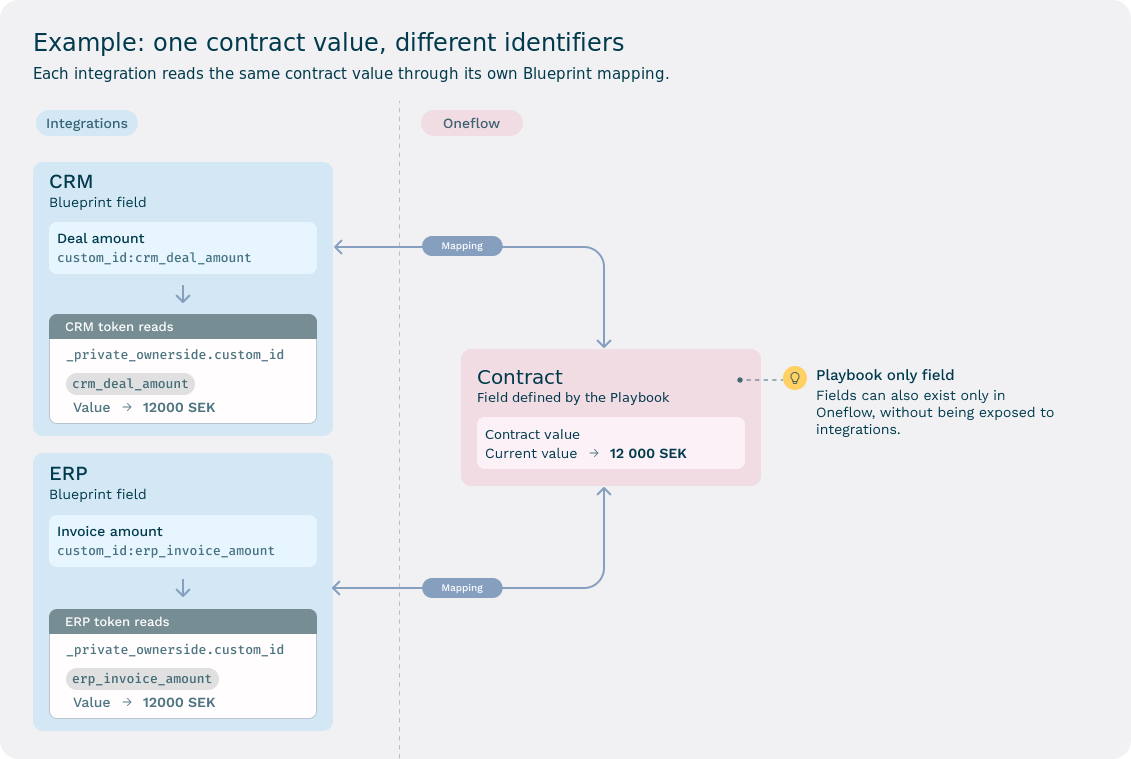
A Playbook defines shared Oneflow fields. Each Contract stores its own field values. Blueprint fields give each integration its own identifiers for mapped fields.
This example shows two integrations using the same field. You can also use a Playbook with one integration.
| Layer | Example |
|---|---|
| CRM Blueprint field | custom_id: crm_deal_amount |
| Playbook field | Contract value |
| ERP Blueprint field | custom_id: erp_invoice_amount |
Both Blueprint fields can map to the same Playbook field. Oneflow stores one current value while each integration works with the identifier from its own Blueprint.
Why custom_id matters
custom_id mattersTreat custom_id as the stable identifier chosen by the integration. Do not identify or map a field by its user-facing name.
A customer can rename Contract value to Agreement total without changing either integration's custom_id. Stable identifiers let customers use their own terminology without breaking integration code.
Field visibility
By default, an integration normally sees a Playbook field only when one of its Blueprint fields maps to that field.
When an integration reads contract data with its API token, it normally receives a Playbook field only if one of its Blueprint fields maps to it.
| Playbook field | CRM mapping | ERP mapping | CRM sees | ERP sees |
|---|---|---|---|---|
| Customer name | crm company | erp customer | Yes | Yes |
| CRM deal ID | crm deal id | None | Yes | No |
| ERP invoice ID | None | erp invoice id | No | Yes |
| Internal legal category | None | None | No | No |
This allows a Playbook to contain Oneflow-only data and integration-specific data without exposing every field to every integration.
Advanced access for generic integrations
A Playbook connection includes an advanced setting that can allow integrations with no Blueprint connected to that Playbook to use the field mappings of one connected Blueprint. This is intended for generic tools such as Zapier or Microsoft Power Automate.
When enabled, the generic integration uses the custom_id values from the Blueprint whose mappings it is allowed to access. Only one connected Blueprint in a Playbook can grant this fallback access.
Enable this setting deliberately because it broadens field access.
Integration identity and token context
An API token identifies the Oneflow account and the Integration instance making the API request. That context determines which mapped fields the integration can access and which custom_id values it receives.
During connection setup, call Get account-related information and inspect token_info.integration.
curl --request GET \
  --url "https://api.oneflow.com/v1/accounts/me" \
  --header "x-oneflow-api-token: YOUR_TOKEN"
Validate the expected integration key and the Integration instance ID before saving a customer connection.
For a Custom Integration API token, the Public API response:
{
    "token_info": {
        "integration": {
            "id": 120000,
            "key": "custom_integration"
        }
    }
}
An integration-specific token affects:
- Which Blueprints the caller can read or maintain.
- Which
custom_idis exposed for a mapped contract field. - Which mapped contract fields are visible to the caller.
Token context does not automatically narrow a contract list to one Blueprint. Use the Public API filters when discovery must be scoped:
GET /v1/contracts?filter[blueprint_ids]=860000
GET /v1/contracts?filter[playbook_ids]=870000
GET /v1/templates?filter[blueprint_ids]=860000
GET /v1/templates?filter[playbook_ids]=870000
Each filter accepts a comma-separated list of IDs.
Object association is an integration responsibility
If your integration updates an existing record, it needs that record's ID. For example, a CRM integration needs the deal ID to update the right deal. A Playbook maps contract values; it does not choose the external record.
Choose an explicit pattern:
- Create a new destination record. For example, create a new employee after the contract is signed.
- Require a destination record ID. Store an employee ID, deal ID, invoice ID, or another external key in a mapped field.
- Link the contract before signing. Use an application or API step to associate the contract with the destination record.
Use a stable identifier whenever the downstream action updates an existing record.
Multiple Blueprints for one Integration
An Integration can define several Blueprints when it supports distinct workflows.
Examples:
- Create a CRM contract from an opportunity.
- Create a CRM contract from an account.
- Run a new-hire workflow.
- Run a promotion workflow.
Each Blueprint can define a different field set and different required mappings.
NoteA Playbook can connect only one Blueprint from a particular Integration instance. Use separate Playbooks when two Blueprints from the same Integration represent different workflows.
Current limits
- 100 Playbooks per account.
- 300 fields per Playbook.
- Five connected Blueprints per Playbook.
- 10 Custom Integration Blueprints per account.
- Mapped field values are currently
stringtype.
Mapped Blueprint and Playbook field values currently use strings. Do not send arrays, objects, booleans, or numeric JSON values as mapped field values.
Related topics
Updated about 2 hours ago