

Core building blocks
A Blueprint defines the fields an integration uses. A Playbook maps those fields to shared Oneflow fields. Use this model for one external system or several.
Conceptual model
| Object | Owns |
|---|---|
| Integration | External-system identity, API token context, webhooks, and a collection of Blueprints |
| Integration Blueprint | Integration fields, stable custom_id values, and mapping requirements |
| Connected Integration Blueprint | The Blueprint-to-Playbook relationship and its field-addition or advanced-access settings |
| Playbook | Shared Oneflow fields, connected Blueprints, and field mappings |
| Template | Reusable document content and selection of one Playbook |
| Contract | Current runtime values and relevant mapping context |
Integration
An Integration represents an external application or service connected to a Oneflow account. Each connection has its own Integration ID. This guide calls that account-specific connection an Integration instance.
It groups:
- API tokens.
- Integration Blueprints.
- Webhooks.
- Integration-specific configuration.
For a Custom Integration, an authorized Oneflow administrator can create Blueprints, API tokens, and webhooks.
If you are building a partner integration, contact the Oneflow Partner team to set up a dedicated integration extension. Partner integrations use the same Blueprint and Playbook model.
The team will help you choose how customers provide API tokens. Customers can enter a token manually, or your app can receive it when the extension is activated or a setup button is selected.
For administrator instructions, see Integrations.
Integration Blueprint
An Integration Blueprint defines the fields that one integration understands for a particular workflow in one Oneflow account.
Think of it as the integration's interface definition.
A Blueprint defines:
- Name and description.
- Integration Blueprint fields.
- The Integration instance this Blueprint belongs to (
integration_id)
It does not contain the contract's runtime values.
One Integration can own several Blueprints. One Blueprint can be connected to several Playbooks. A Playbook can connect only one Blueprint from a particular Integration instance.
Account-scoped lifecycle
Blueprints are maintained per Oneflow account. If a partner integration is installed by many customers, store the relevant account and Blueprint IDs in each customer's integration configuration.
Do not assume that one Blueprint ID applies globally across accounts.
Ownership and permissions
- An integration-specific token operates in its Integration context.
- A caller cannot use one Integration context to maintain another Integration's Blueprints.
- A legacy Blueprint synchronized from a Template Group is read-only until it is updated to a modern blueprint.
- The ability to edit other Blueprints depends on the Integration ownership and the user's permissions.
- Custom Integration Blueprints can be created and managed by an authorized administrator.
Public API representation
The Public API exposes Blueprint and Blueprint-field operations. A create request requires enabled, integration_id, and name. It can also include description and an initial integration_blueprint_fields array.
Use PUT, not PATCH, to update a Blueprint.
| Purpose | API operation |
|---|---|
| List Blueprints | GET /v1/integration_blueprints |
| Create a Blueprint | POST /v1/integration_blueprints |
| Get one Blueprint | GET /v1/integration_blueprints/{integration_blueprint_id} |
| Update a Blueprint | PUT /v1/integration_blueprints/{integration_blueprint_id} |
| Delete a Blueprint | DELETE /v1/integration_blueprints/{integration_blueprint_id} |
Integration Blueprint field
A Blueprint field defines how an integration identifies a contract data field. The Blueprint field does not store the contract's value.
| Property | Purpose |
|---|---|
name | Human-readable integration-facing label. |
description | Explains how the integration uses the field. |
custom_id | Stable identifier used by integration code. |
mapping_required | If true, an administrator must map this Blueprint field to a Playbook field. |
The Public API introduces this object as an Integration Blueprint field. In Blueprint-specific UI, the shorter label Integration field can be used for the same object.
Required and optional mappings
Set mapping_required to true only when the integration cannot operate correctly without the value.
Examples of required fields:
- Opportunity ID needed to update the originating CRM record.
- Employee ID needed to update an existing employee.
- Candidate ID needed to associate the contract with an applicant.
Examples of optional fields:
- Customer segment.
- Internal category.
- Optional reporting metadata.
When a required Blueprint field is not mapped, the Playbook configuration remains incomplete and Oneflow displays a missing-required-field warning.
Stable identifiers
custom_id defines a stable identifier as an interfacing attribute between the integration and a Oneflow contract
- Choose a clear, stable value.
- Do not derive it from a user-facing label.
- Avoid changing it after customers have configured mappings.
- If a change is unavoidable, document the migration and preserve backward compatibility where possible.
Field API operations
The bulk field operation supports:
- Create: omit
idand supply at leastcustom_idandname. - Update: supply the field
idand the properties to change. - Remove: supply the field
idand setremovetotrue.
Playbook
A Playbook defines the shared Oneflow fields for a business process and maps them to fields from connected Blueprints.
A Playbook can:
- Exist without a connected integration.
- Connect a Blueprint from one Integration, or Blueprints from several Integrations.
- Contain fields that are used only inside Oneflow.
- Map several Blueprint fields to one shared Playbook field.
- Be selected by one or more Templates.
The customer controls the Playbook's user-facing field names, defaults, and mappings.
The Public API currently exposes GET /v1/playbooks. It lists Playbooks and their connected Blueprints.
Currently, the Public API does not expose create, update, field-mapping, or connection operations. Create and configure Playbooks separately in Oneflow Admin.
For administrator instructions, see Playbooks.
Playbook data field
A Playbook data field is the shared field used by Templates and Contracts.
It can include:
- An id.
- A name.
- A description.
- A default value.
- A type, currently string for Blueprint mappings.
- Mappings to fields from connected Blueprints.
A Playbook field has its own id. Each integration uses the custom_id of its mapped Blueprint field, while the mapping connects that field to the Playbook field by id.
For example:
| Integration Blueprint field | Blueprint custom_id | Playbook field | Playbook field id |
|---|---|---|---|
| CRM company name | crm_company_name | Company name | 12345 |
| ERP customer name | erp_customer_name | Company name | 12345 |
Both Integration Blueprint fields map to the same Playbook field id. Each integration continues to use its own custom_id.
Field mapping
A field mapping links an Integration Blueprint field to a Playbook field using their internal id values. Integrations use the Blueprint field’s custom_id when sending or retrieving contract data.
Oneflow uses the Blueprint field ID and Playbook field ID to save the mapping. Your integration uses the Blueprint field's custom_id when it sends or reads contract data.
Mappings:
- Identify which shared value an integration reads or writes.
- Let several integrations share a value without sharing identifiers.
- Hide unrelated Playbook fields from an integration by default.
Each mapping is independent. A single Playbook field can have one mapped field from each connected Blueprint.
A customer can rename a Playbook field, move a mapping to another Playbook field, or add fields that no integration uses.
Connected Integration Blueprint
Connecting a Blueprint to a Playbook lets you map that integration's fields to shared Playbook fields. Oneflow saves this connection as a Connected Integration Blueprint.
It stores behavior that belongs to the relationship, including:
- How existing Blueprint fields are added when the connection is created.
- How future Blueprint fields are added.
- Whether this connection grants its mappings to other integrations that are not connected.
It does not make the integration a source or destination. Those roles depend on which integration creates a contract and which integrations process matching webhook events.
Connect a Blueprint in Oneflow Admin
Go to Admin > Playbooks > [Playbook] > Connected integrations, then click + Connect an integration blueprint.
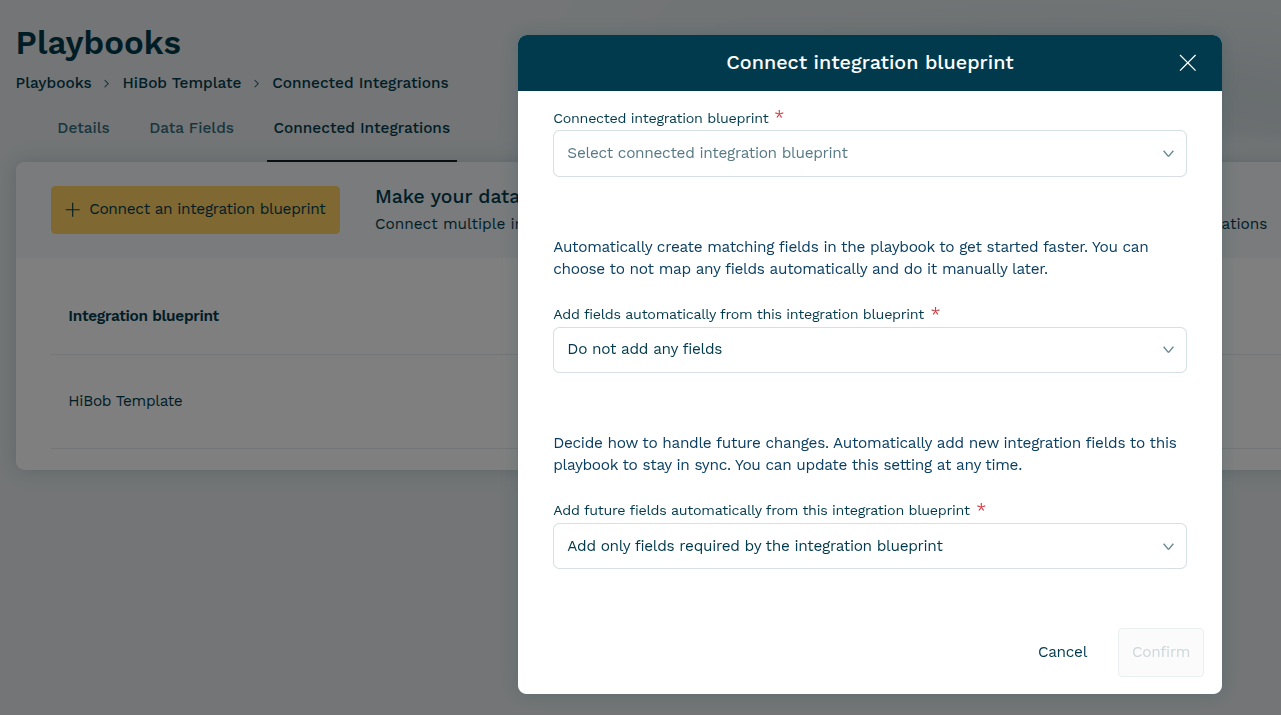
For existing blueprint fields, choose one of the following options:
- Add only fields required by the blueprint
- Add all fields from the blueprint
- Do not add any fields
Choose the corresponding behavior for future fields separately in the next dropdown.
For the first Blueprint connected to a new Playbook, automatically adding required fields is a safe starting point.
For later Blueprints, consider manual mapping so that existing shared Playbook fields are reused instead of creating duplicates.
Advanced access for unconnected integrations
In the Playbook's Connected integrations tab, open the Blueprint whose mappings you want to share. Under Advanced settings, you can allow integrations with no Blueprint connected to this Playbook to use those mappings. This is mainly for generic automation tools.
When enabled:
- Those integrations can read and write the Playbook fields mapped through the selected Blueprint.
- They see those fields using the selected Blueprint's
custom_idvalues. - This broadens access to those fields, so enable it only when needed.
See Playbooks for a screenshot of the setting.
Template
A Template provides the content and settings used to create a Contract. You select one Playbook on the Template, then use its fields in:
- Text elements.
- Form fields.
- Section rules.
- Other document configuration that supports data fields.
A Playbook can be selected by several Templates.
Contracts created from a Template still include its default participants and use the signing and delivery options available for that Template. The Template also determines which product tables are available.
You can add participants and products in the usual Contract creation request. If the Template has several product tables, include the target table's product_groups[].id when adding products. Blueprints and Playbooks do not add a separate API call for these settings.
Get templates supports:
filter[playbook_ids]
filter[blueprint_ids]
Template responses expose the selected Playbook and the Blueprints connected through it.
Contract
A Contract is a runtime document. A Contract created from a Template inherits the Template's Playbook fields and the relevant Blueprint mapping context.
The Contract stores the current field values. Those values can change during negotiation and other lifecycle steps.
The Contract also keeps a creation-time snapshot of the relevant Playbook and connected Blueprints. This preserves the Contract's context if the Playbook is later changed or deleted. Template snapshots stay synchronized with the selected Playbook, but existing Contract snapshots do not.
Field mappings are copied to the Contract data fields.
An integration normally reads or updates only fields visible through its Blueprint mappings. The same shared playbook field can therefore appear with a different custom_id to different Integration contexts.
Get contracts supports:
filter[playbook_ids]
filter[blueprint_ids]
Use those filters when your integration needs to discover only Contracts associated with a particular Playbook or Blueprint.
API token
An API token authenticates the caller and identifies its Integration context.
For Custom Integration, an authorized administrator can generate tokens under Admin > Integrations > Custom Integration > API tokens.
Integration developers should:
- Store tokens encrypted.
- Never log complete token values.
- Validate the token context with GET
/v1/accounts/me. - Design a safe rotation process.
- Use the least access required for the workflow.
Webhook
A webhook notifies an integration when configured conditions match a contract event.
Webhook registration supports filter rules of type:
EVENT_TYPEWORKSPACEBLUEPRINT
A BLUEPRINT filter rule matches contracts whose connected integration Blueprints include one of the Integration Blueprint IDs specified in the BLUEPRINT filter.
Connecting a Blueprint to a Playbook does not create a webhook. Register and maintain webhook behavior separately.
See Webhooks and integration responsibilities.
How data flows
The same integration can create a contract and respond to its events. Other integrations can also respond.
1. Contract creation
The source integration creates a contract from a template and sends values using its own Blueprint custom_id values.
{
  "template_id": 170001,
  "workspace_id": 420001,
  "data_fields": [
    {
      "custom_id": "crm_deal_amount",
      "value": "10000"
    }
  ]
}
Oneflow resolves the identifier through the Playbook mapping and stores the shared contract value.
2. Editing in Oneflow
Users can change fields in the contract. Oneflow keeps the current value and does not automatically update the source value.
3. Event matching
When a contract event occurs, Oneflow evaluates registered webhooks. A webhook runs when its configured filters match.
4. Destination processing
The receiving integration validates and deduplicates the event, retrieves current Contract data when needed, and performs its downstream action.
Oneflow does not select the destination record. The integration must create a new record or use an explicit mapped identifier to update an existing one.
Responsibility summary
| Responsibility | Integration provider | Customer administrator | Oneflow |
|---|---|---|---|
| Define the integration field schema | Yes | For Custom Integration | Provides the platform model |
Maintain stable custom_id values | Yes | For Custom Integration | Stores mappings and applies visibility |
| Create or maintain Playbook fields | Optional assistance | Yes | Provides the UI and model |
| Map Blueprint fields to Playbook fields | Optional assistance | Yes | Applies the mappings |
| Select a Playbook on a Template | No | Yes | Applies the configuration to Contracts |
| Register and process webhook events | Yes | Can configure Custom Integration | Matches and sends events |
| Match destination records | Yes | No | Does not infer the target record |
| Maintain current contract state | No | Users can edit it | Yes |
Updated about 2 hours ago